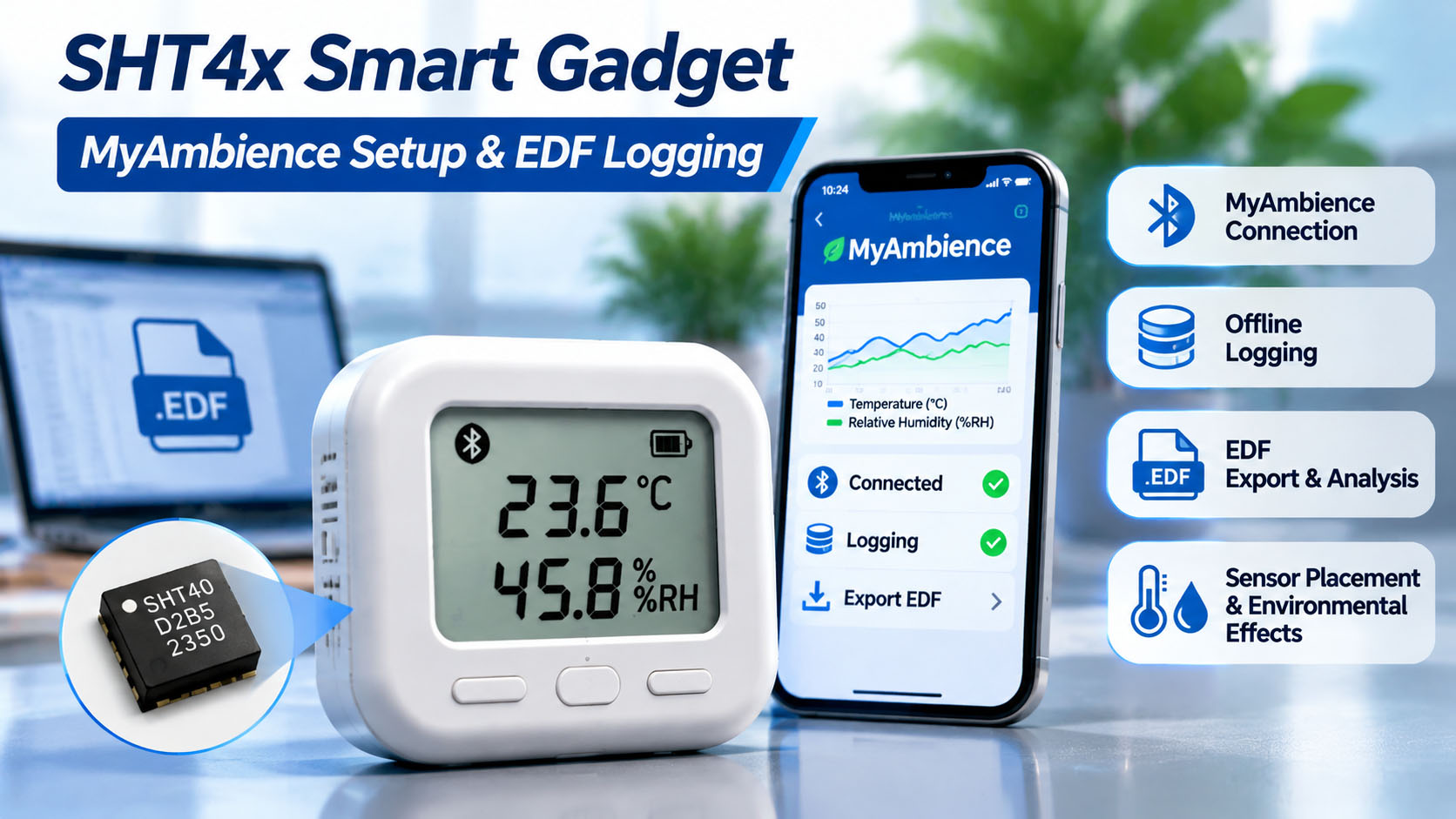
SHT4x Smart Gadget: MyAmbience Setup and Offline EDF Logging
Leave the SHT4x Smart Gadget in your test enclosure and take your phone away. On return, check whether the gadget recorded the time in between. Follow the connection steps, verify the EDF timestamps, then use a two-gadget swap to investigate placement effects.
The SHT4x Smart Gadget stores measurements onboard while the phone is disconnected. Reconnect in MyAmbience, fetch the history and check exported EDF timestamps against your recorded disconnect window.
The Sensirion reference design uses SHT40. Sensirion user guide, sections 2.4–2.5 and 4.2.
Using existing hardware? Sensirion lists the Smart Gadget as end of life. This guide covers existing boards and reference-design study. Check availability before sourcing a new unit. Sensirion product status.
1. How to Connect the SHT4x Smart Gadget to MyAmbience
You need a powered gadget, a phone with the MyAmbience app, and a way to note the test time. If MyAmbience already displays a fresh reading from the correct gadget, you can proceed to the offline-logging test.
Check the LCD and battery first
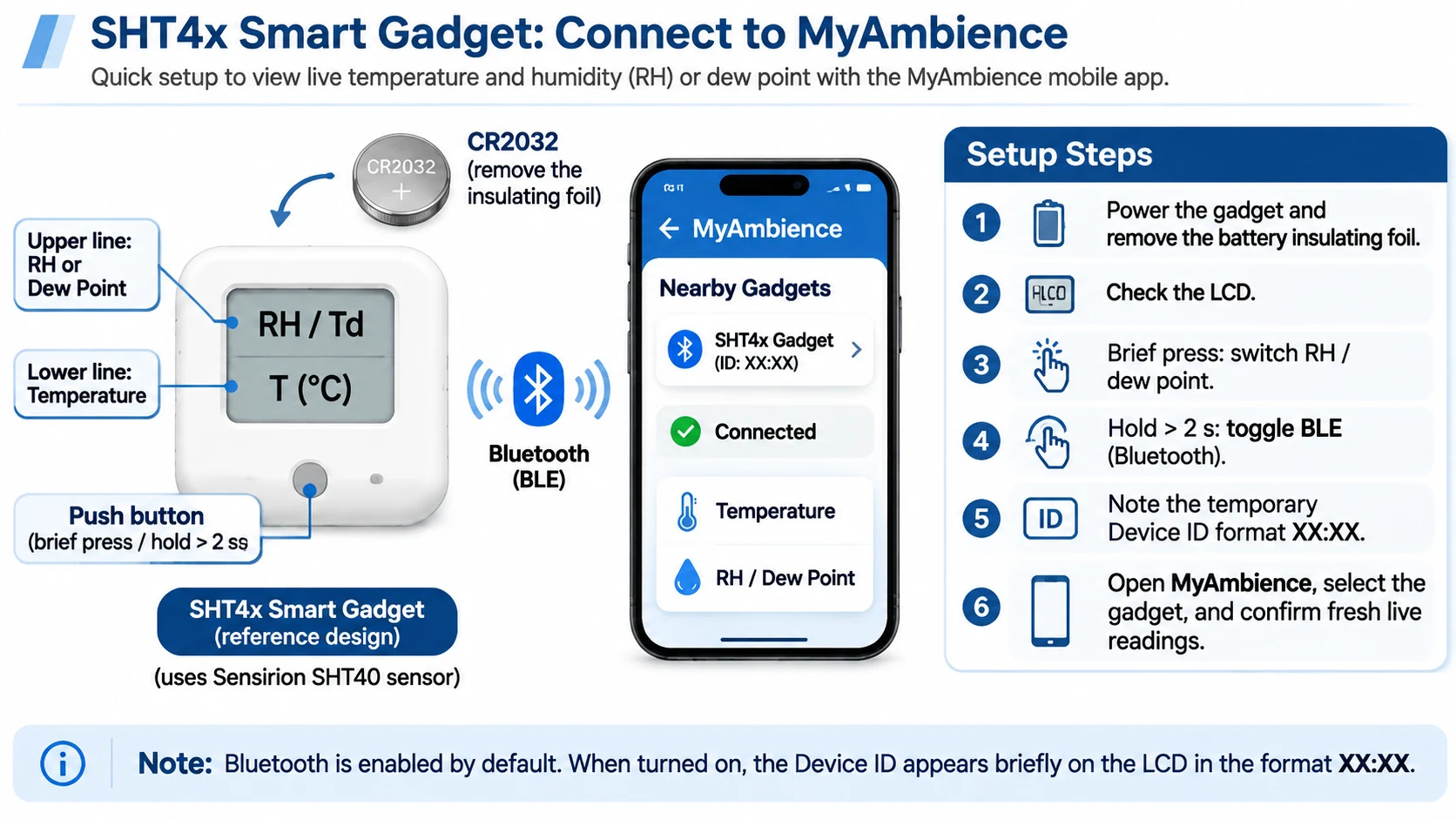
Remove the battery insulating foil and confirm that the LCD displays a measurement. The Smart Gadget uses a CR2032 coin cell. If the display is blank, check the battery condition, polarity, holder contact, and seating before troubleshooting BLE.
In standalone mode, the upper LCD line shows relative humidity or dew-point temperature, while the lower line shows temperature. A brief button press switches the upper-line display between RH and dew point.
Confirm Bluetooth mode and identify the gadget
Bluetooth is enabled by default. When BLE is active, the Bluetooth symbol appears on the LCD. To toggle the gadget's Bluetooth mode, press the button for more than two seconds. When Bluetooth is turned on, the device ID appears briefly on the display in the documented XX:XX format. Note this identifier before selecting a device if several gadgets are nearby.
Find the device in MyAmbience
Enable phone Bluetooth and grant MyAmbience the permissions requested by your operating system. Some Android versions also require Location permission for BLE scanning. Start close to the gadget so range is one less variable during setup.
Select the correct gadget card and confirm that its values update. You are ready for the disconnected test when the device ID matches and the app shows a fresh reading.
For current app instructions, see the Sensirion MyAmbience Manual. The manual describes MyAmbience version 3.6 and newer; app labels and permissions can change with later operating-system and app releases.
2. How to Verify Offline Logging and Export EDF Data
Keep the two data paths separate. A live reading shows what the gadget is reporting now. The downloaded history shows what the gadget stored while the phone was away. Sensirion's user guide states that the Smart Gadget logs to built-in memory even after the Bluetooth connection is terminated.
Set a known logging interval
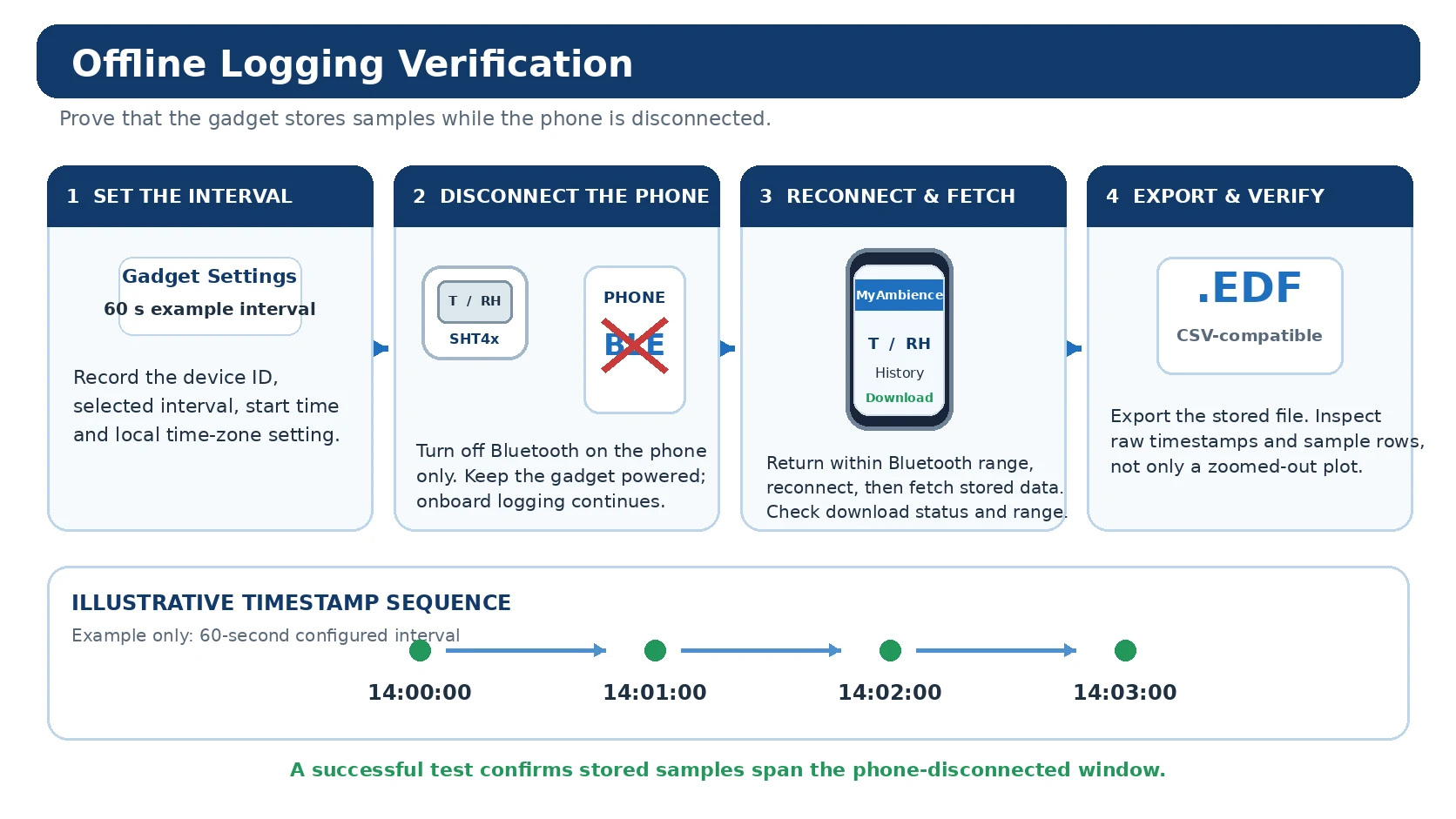
Open the gadget settings in MyAmbience and note the logging interval shown by the app. Use a 60-second interval for the example test only if that interval is available in your app; otherwise, use an available interval and calculate the expected timestamps from that setting. Record the gadget ID, selected interval, test start time, test end time, and local time zone. If the app shows available logging memory or battery status, record those values too.
Before starting, set the maximum acceptable gap and how close the first and last samples should be to each test boundary. Allow for partial intervals at both ends. Run a short test covering at least ten configured intervals, then repeat over your intended deployment duration.
Disconnect the phone—not the gadget
Turn off Bluetooth on the phone for the test window. Leave the Smart Gadget powered and in its existing Bluetooth mode; do not press the gadget button to disable its BLE radio. Keep the gadget stationary and avoid changing its settings during the run. Record the exact time when the phone disconnects and when it returns.
Reconnect, fetch the stored data, and export EDF
Restore Bluetooth on the phone and move close to the gadget. MyAmbience must reconnect to the gadget to fetch its stored history. Start the download from the gadget card or the plot view, then wait for the download status to show completion. The app reports the number of samples downloaded and their time range. If a download fails or is interrupted by a weak Bluetooth connection, retry it from the download view.
In Plot, select only the test gadget and tap Share. When export finishes, save the .edf file from the export card. MyAmbience uses a CSV-compatible format that opens in Excel or another CSV-capable editor. Match the local time and any enabled time-zone offsets to your test notes. MyAmbience export instructions.
Inspect exported rows—not only the plot
Identify the timestamp, temperature, and RH fields in the exported file. Sort the raw rows by timestamp and check for duplicates, missing intervals, and unexpected gaps. MyAmbience can down-sample plotted data depending on the selected time range, so a zoomed-out graph is not a reliable way to count every stored sample. Use the exported rows for the continuity check.
Read the 120-second example gap
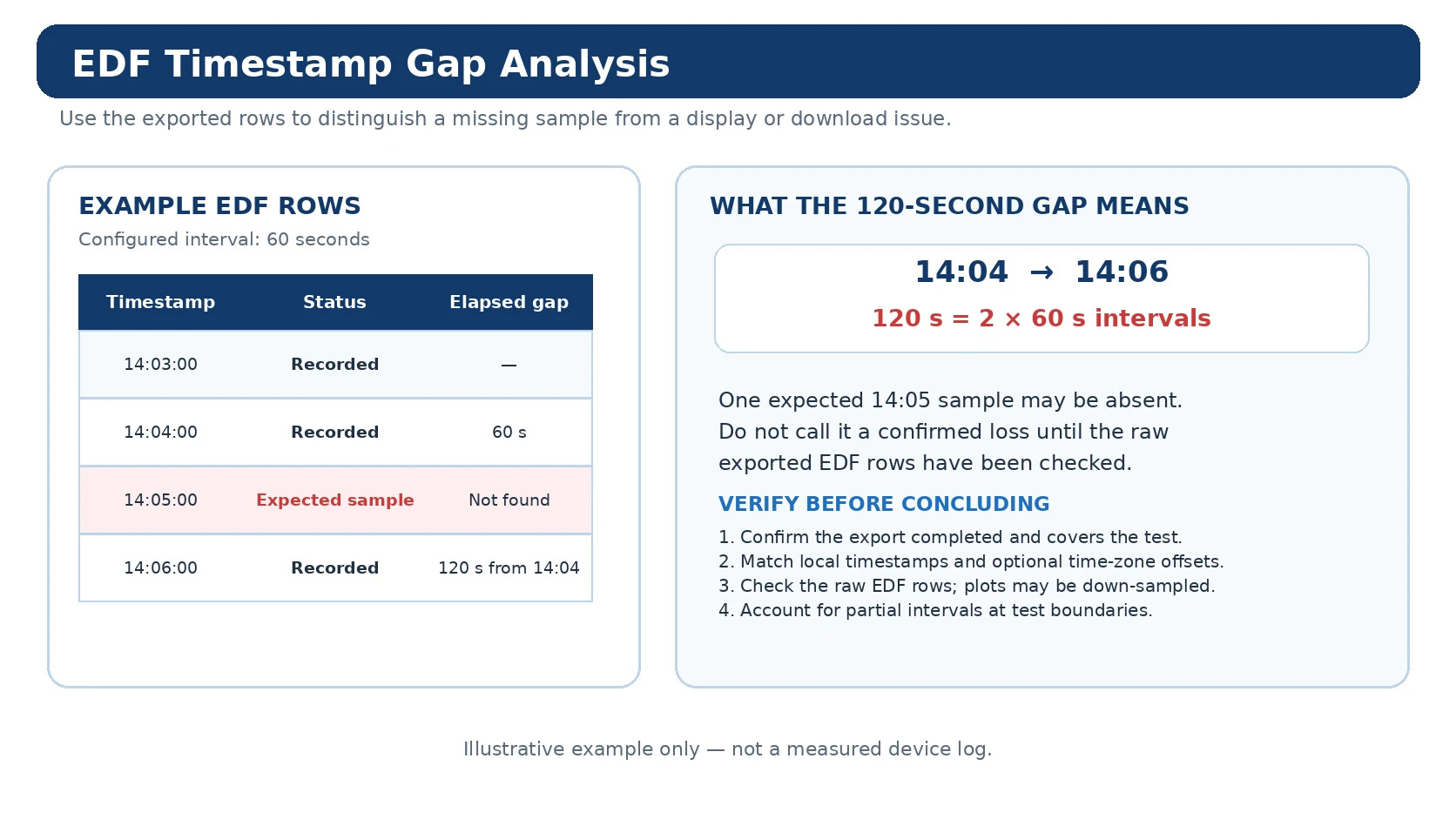
At a 60-second interval, example timestamps of 14:03, 14:04 and 14:06 include a 120-second gap. Check the raw export for the expected 14:05 row, then check download completion and the time-zone setting. Investigate the recording if the gap remains. Account for partial intervals at the test boundaries.
| What the export shows | What you can conclude and do next |
|---|---|
| No samples strictly inside the disconnected window | The trial is inconclusive. Confirm the download completed, check the selected gadget and time zone, then repeat with clearly recorded start and end times. |
| Samples inside the window, but incomplete coverage | Records inside the window show that logging occurred. Check incomplete download, power and settings if only one sample is present, a gap exceeds your limit, or samples fail to cover either boundary. |
| At least two samples, with acceptable gaps and coverage at both ends | The short test meets your limits. Repeat over the intended duration to check record retention and download. |
Keep a test record. Save the gadget ID, interval, time zone, disconnect start/end and original EDF. Record unique timestamps inside the window, first and last timestamps, largest gap if calculable, and your pass/fail decision.
3. Diagnose Sensor Placement and Relative-Humidity Differences
A wall-mounted humidity monitor may read lower after its housing is closed. Before moving the sensor or enlarging a vent, determine whether the difference follows the measurement location or a particular gadget. Use two gadgets only if they fit without materially changing airflow. For a compact finished enclosure, compare the installed sensor with a suitable independent instrument. Sensirion specifies the SHT4x Smart Gadget for indoor operation from −10 °C to 60 °C.
Establish a shared baseline
Place both gadgets side by side in stable air, away from heat and drafts. Use the same logging interval and wait for readings to settle. Pair samples by time. Record b = median(A − B) in percentage points and the spread of the paired differences around that baseline.
Compare the two positions, then swap the gadgets
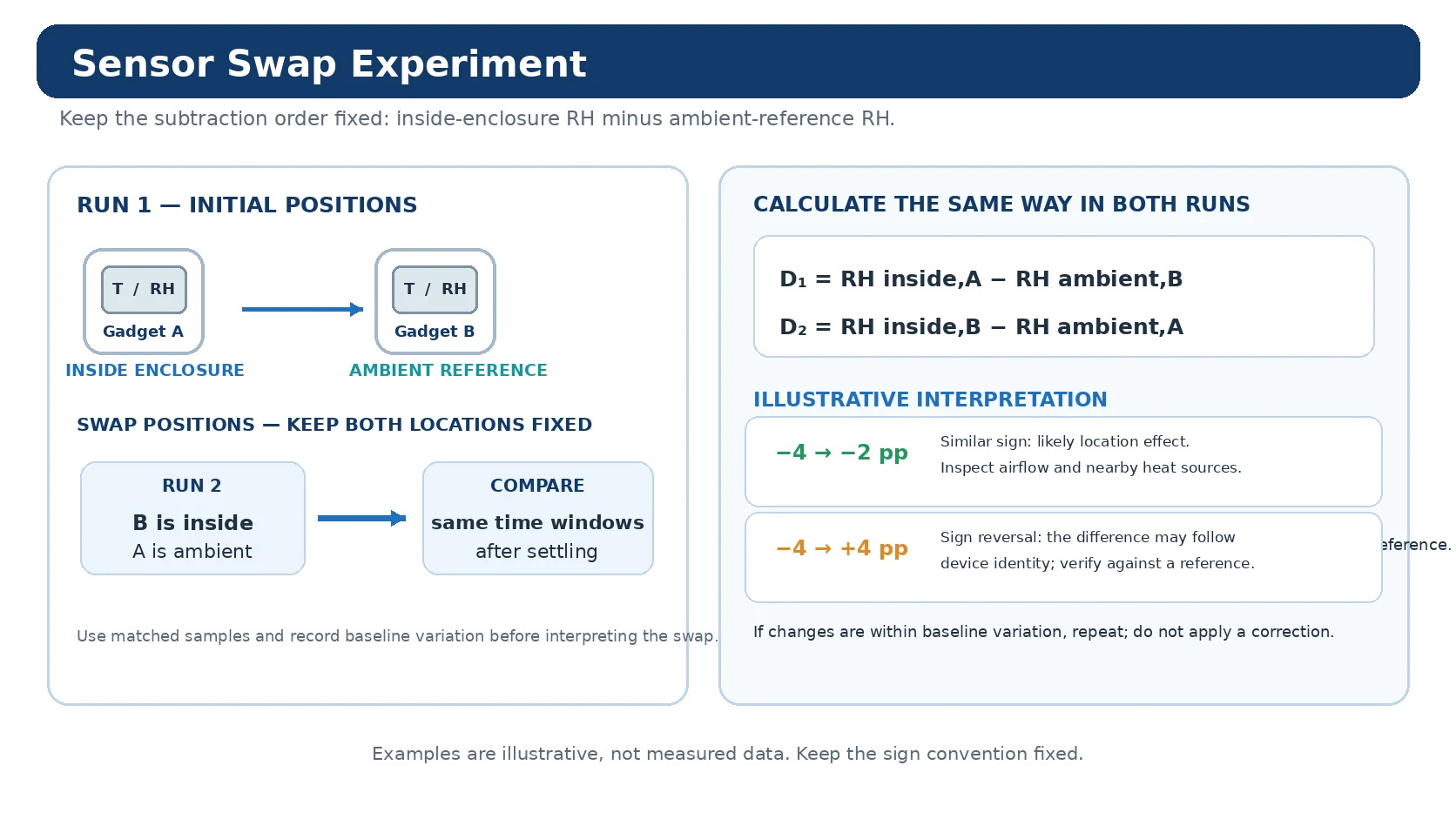
For the first run, put Gadget A at the proposed inside-enclosure sensor position and Gadget B at the ambient reference position. Keep the enclosure, load, mounting method, and measurement timing consistent. After the readings settle, swap the two gadgets while keeping the two physical positions fixed: Gadget B goes inside and Gadget A goes to the ambient reference. Wait for both positions to settle again and compare equivalent, time-aligned windows. Leave unmatched samples out rather than pairing measurements taken at materially different times.
Keep the subtraction order fixed
Calculate the location difference as inside-enclosure RH minus ambient-reference RH in both runs. The gadget identity changes after the swap, but the physical subtraction order must not change:
D₁ = median(RHinside,A − RHambient,B) D₂ = median(RHinside,B − RHambient,A)Account for the unit-to-unit baseline as well as its variation. In run 1, compare D₁ − b. After swapping, compare D₂ + b because the unit order has reversed. Interpret these comparisons under stable, comparable temperature and RH conditions, where the measured unit offset remains representative.
| Illustrative RH difference (D₁ → D₂) | Interpretation and next design decision |
|---|---|
| −4 → −2 percentage points with baseline b = −1 point and little baseline variation | −3 and −3 points after baseline adjustment. Both runs support a lower inside reading under comparable conditions. Inspect airflow and thermal coupling, then change one feature and repeat. |
| −4 → +4 percentage points with baseline b = −4 points and little baseline variation | 0 and 0 points after baseline adjustment. The example follows the unit difference. Use a suitable reference to establish which unit is offset. |
| Adjusted differences are comparable to the baseline variation | Repeat with comparable, settled conditions before changing the enclosure or applying a correction. |
Interpret temperature, RH, and dew point together
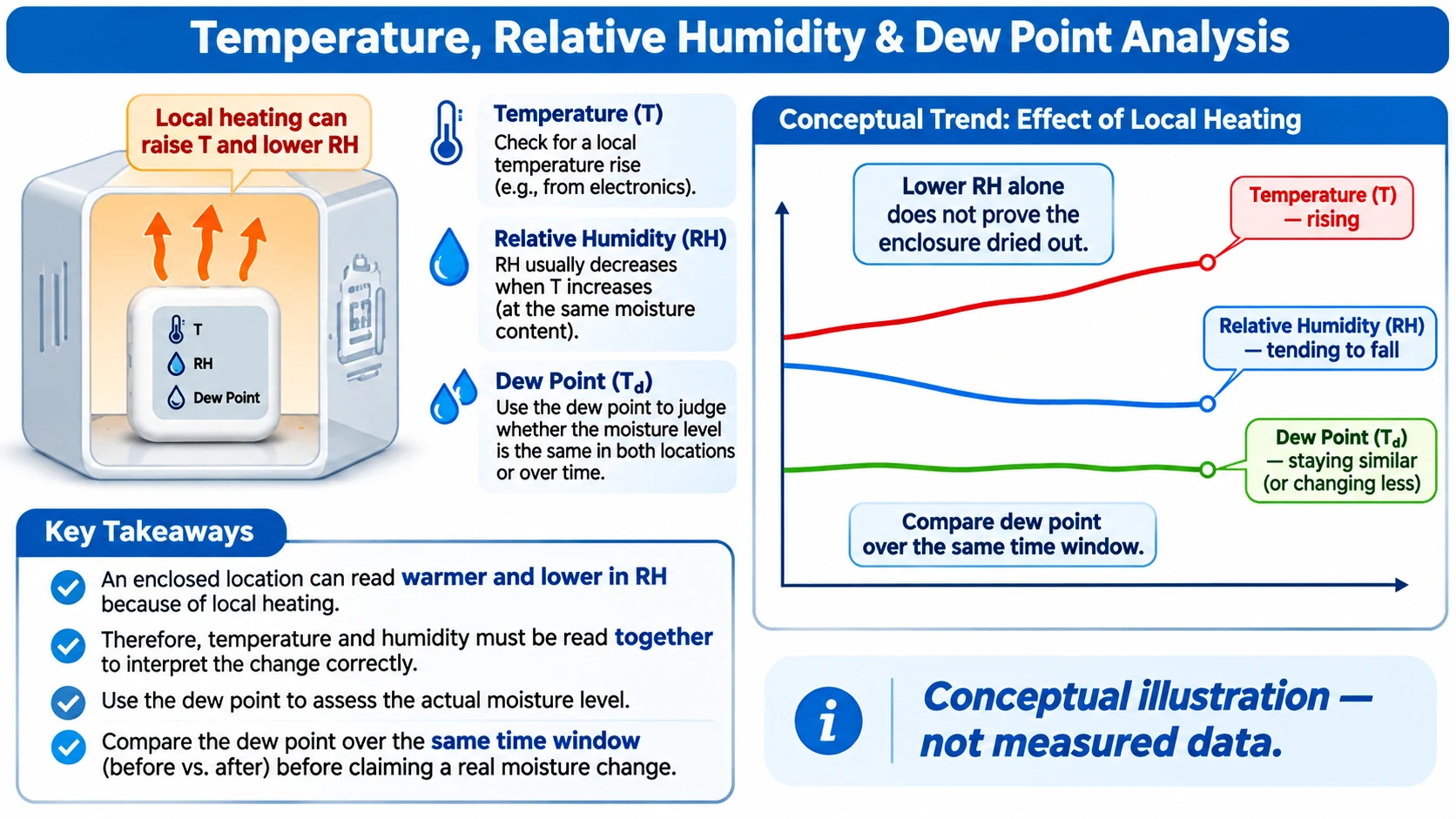
Relative humidity depends on temperature. If the air warms while its water-vapor content remains approximately constant, RH generally falls even though the air has not necessarily become drier. In that case, dew point should remain approximately stable. Compare temperature, RH, and dew point over the same time window before attributing a lower RH reading to moisture loss. A sustained dew-point change may indicate that moisture content or air exchange also changed.
Also compare response after an event. If both locations eventually agree but the inside reading takes longer to settle, record that delay. Use the product's response-time requirement to decide whether a vent, mounting, or enclosure change is necessary. Sensirion's Testing at Ambient Conditions application note provides guidance on reference sensors, test fixtures, procedures, and environmental stability.
4. Evaluate FHT40 for a Custom PCB
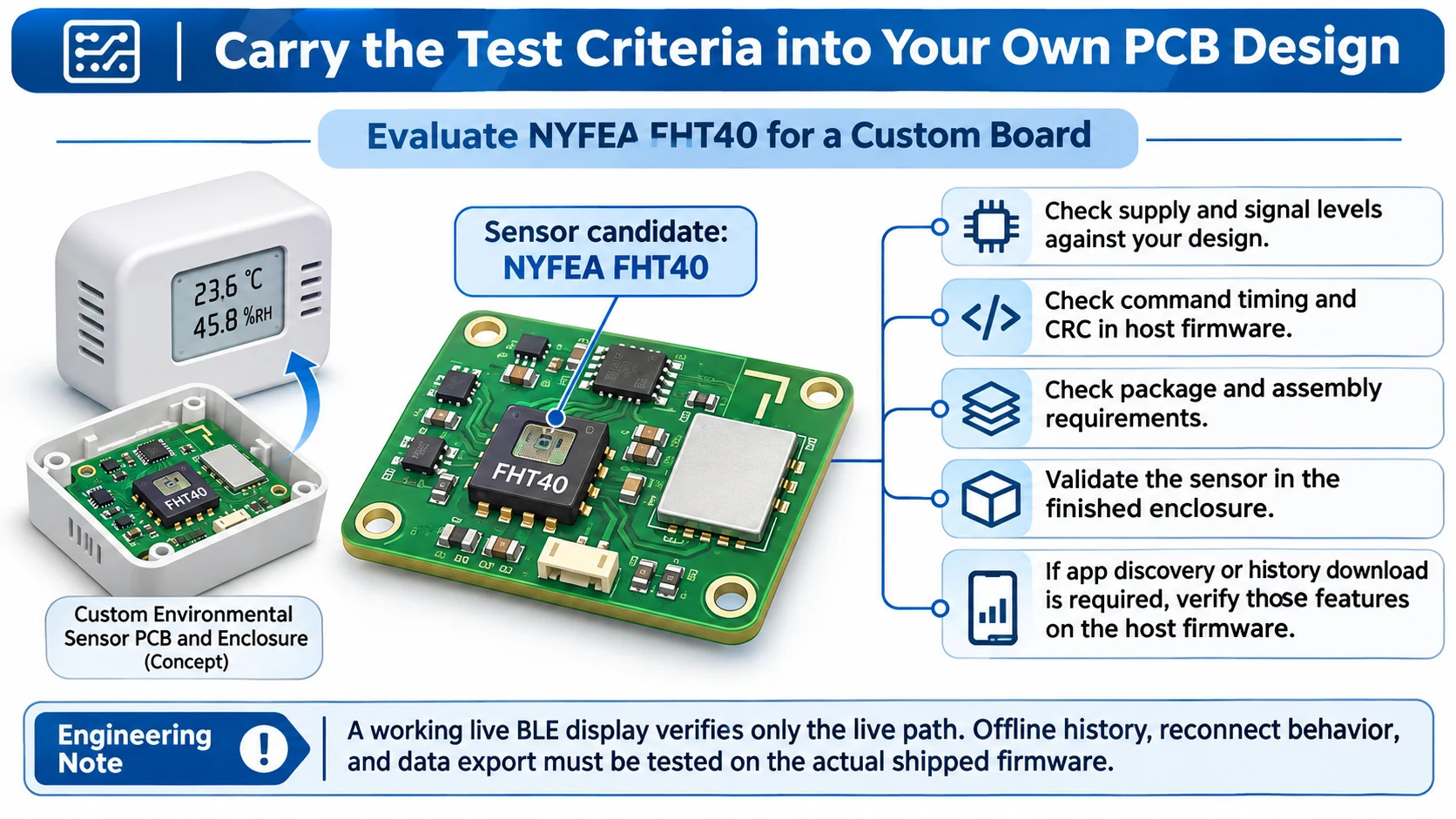
Carry the observations and acceptance criteria from the Smart Gadget test into the finished design. Specify the sensor location, required response time, what data must remain available after a disconnect, and the maximum gap the application can tolerate. Repeat those tests on the assembled product rather than assuming that a successful reference-board test guarantees the behavior of a new design.
Check the sensor and host implementation
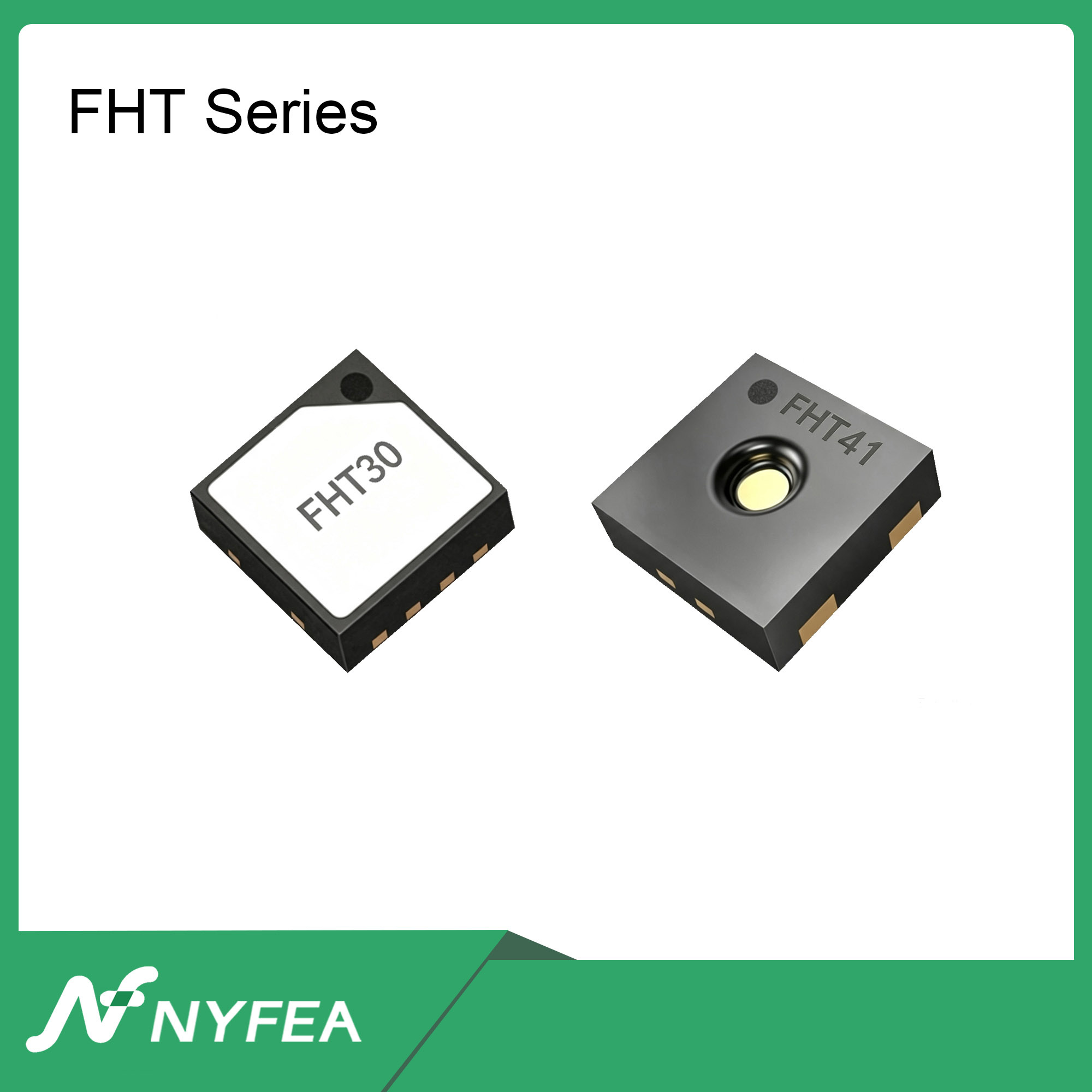
The Sensirion Smart Gadget uses SHT40. For your custom board, evaluate NYFEA FHT40 against its controlled specification. The current product summary lists a 1.5 × 1.5 mm DFN-4 package, CRC-protected I²C and a 1.6–5.5 V supply range. Check pinout, command timing, pull-ups, footprint and assembly requirements for the exact part. FHT40 product summary.
For the host design, check the supply and logic levels, I²C command timing, CRC handling, sensor placement, thermal coupling, airflow, and package assembly. If the product also needs app discovery, BLE communication, offline history, or EDF/CSV export, those are system-level features that must be implemented and validated in the host MCU firmware and BLE hardware. A working live BLE display verifies only the live data path.
Useful design resources include the SHT4x Smart Gadget hardware repository and Sensirion's Arduino BLE Gadget library for ESP32. For a separate SHT40 microcontroller example, see NYFEA's SHT40 with ESP32 wiring and I²C guide.
Frequently Asked Questions
Which sensor is fitted to the SHT4x Smart Gadget?
Sensirion documents the SHT40 in the SHT4x Smart Gadget. The user guide's bill of materials identifies the sensor as SHT40-AD1B-R2. Check the board revision and BOM when identifying a particular unit.
Does the phone have to stay connected for logging?
No. The gadget stores measurement samples in built-in memory and continues logging when the Bluetooth connection is terminated. Reconnect with MyAmbience to fetch the stored records and export them as an EDF file.
Why does MyAmbience show live data but no offline history?
Live data and stored history are separate checks. Reconnect close to the gadget, start a fetch, and wait for the download view to report completion, sample count, and time range. If the download fails or is interrupted, retry it. Then confirm the selected gadget, logging interval, available memory, and timestamp convention. A live card alone does not confirm that historical data was fetched.
Why might the EDF file appear to be missing a sample?
Compare the raw exported timestamps with the configured logging interval. With a 60-second interval, a jump from 14:04 to 14:06 is 120 seconds and may indicate that the expected 14:05 sample is absent. First verify the download completed, check local time and optional time-zone offsets, and inspect the raw EDF rows rather than relying only on a down-sampled plot.
Can the SHT4x Smart Gadget calibrate another humidity sensor?
No. Two gadgets can support an initial side-by-side comparison or an enclosure experiment, but agreement between two units does not establish absolute accuracy. For calibration or product acceptance, use a suitable calibrated reference and control temperature, humidity, settling time, and placement.
Is NYFEA FHT40 the sensor inside the SHT4x Smart Gadget?
No. The Sensirion reference design uses SHT40. NYFEA FHT40 is a separate sensor intended for evaluation in a custom PCB. BLE discovery, data logging, and EDF export require the appropriate host hardware and firmware; they are not automatically provided by the sensor component.
How should I choose the SHT4x Smart Gadget logging interval?
The SHT4x Smart Gadget logging interval should resolve the changes your application needs to detect. Choose an available interval in MyAmbience settings and record it with the test notes. Shorter intervals produce more samples over the same duration. Check available memory and battery status, then verify retention over the full planned run. Treat 60 seconds as an example setting and confirm that your app offers it. MyAmbience device settings.
How do I open a MyAmbience EDF export in Excel?
MyAmbience exports a CSV-compatible EDF file that can be opened with Excel or another CSV-capable editor. Keep the original file and import a working copy as delimited text, checking the timestamp and measurement columns in the import preview. Preserve the time convention used in your test notes. If exported timestamps include time-zone offsets, verify how the spreadsheet parses them before comparing times or calculating gaps. MyAmbience EDF export documentation.
Why can SHT4x humidity fall when an enclosure warms up?
SHT4x relative humidity can fall as local air temperature rises while water-vapor content remains approximately stable. Compare synchronized temperature, RH and dew-point records before interpreting the change. A temperature rise with falling RH and a stable dew point is consistent with local heating. Check nearby electronics and thermal coupling, then repeat under comparable conditions. Use the enclosure experiment to investigate placement effects before applying an RH correction. Temperature, RH and placement checks.
Can I build a MyAmbience-compatible sensor gadget with ESP32?
Sensirion provides an ESP32 BLE Gadget library with live-value broadcasting and buffered history download for MyAmbience. Start from an example that matches your board and library version, then integrate the sensor driver. Check sample commits and history-download handling in your main loop. For a custom SHT40 or FHT40 product, verify the actual sensor interface, history retention, reconnect behavior and power-cycle recovery on the firmware you intend to ship. Sensirion ESP32 BLE Gadget project.
Technical References
This independent NYFEA engineering guide is based on the following manufacturer and product resources. Consult the current controlled specification for final component selection and production release.
- Sensirion — SHT4x Smart Gadget User Guide (LCD controls, BLE, built-in logging, BOM, and hardware resources).
- Sensirion — MyAmbience Manual (permissions, device settings, stored-data downloads, EDF export, timestamps, and plot down-sampling; manual refers to app version 3.6 and newer).
- NYFEA — FHT40 Digital Temperature and Humidity Sensor (selection summary and product specification).
SHT40, SHT4x, Sensirion, and MyAmbience are names used to identify products and resources belonging to their respective owners. NYFEA FHT40 is a separate NYFEA product. This independent guide does not imply an affiliation, endorsement, or approved replacement relationship. Generated illustrations are conceptual and are not product photographs or released PCB layouts.
Evaluate a digital sensor for your PCB
Share your sensor requirements, enclosure layout, target response time and logging interval with NYFEA for an FHT40 document and sample review.